After trying ChronoCMS under a subdomain here on chronocms.com you may download and install it on your own web server.
At the time of writing this article, you can download the ChronoCMS by sending us a message using the Contact page.
After downloading the files, you need to prepare your web server then upload the files.
The installation package consist of 2 files:
- The chrono_cms.zip file which has the executable web server + the .html resources and static assets.
- The deploy_cms.sh bash script which should be executed once to install and register the service on your server.
Installation Steps
Purchase a simple VPS plan from any hosting service or a Cloud hosting.
Services like AWS, Google, DigitalOcean or Alibaba Cloud...etc are fine, your VPS does not need to have more than 1 vCPU + 1 GB of RAM
We prefer installing the system on Debian Linux latest version
Connect to the VPS using SSH
You must be connected as "root" and do the necessary updates and upgrades
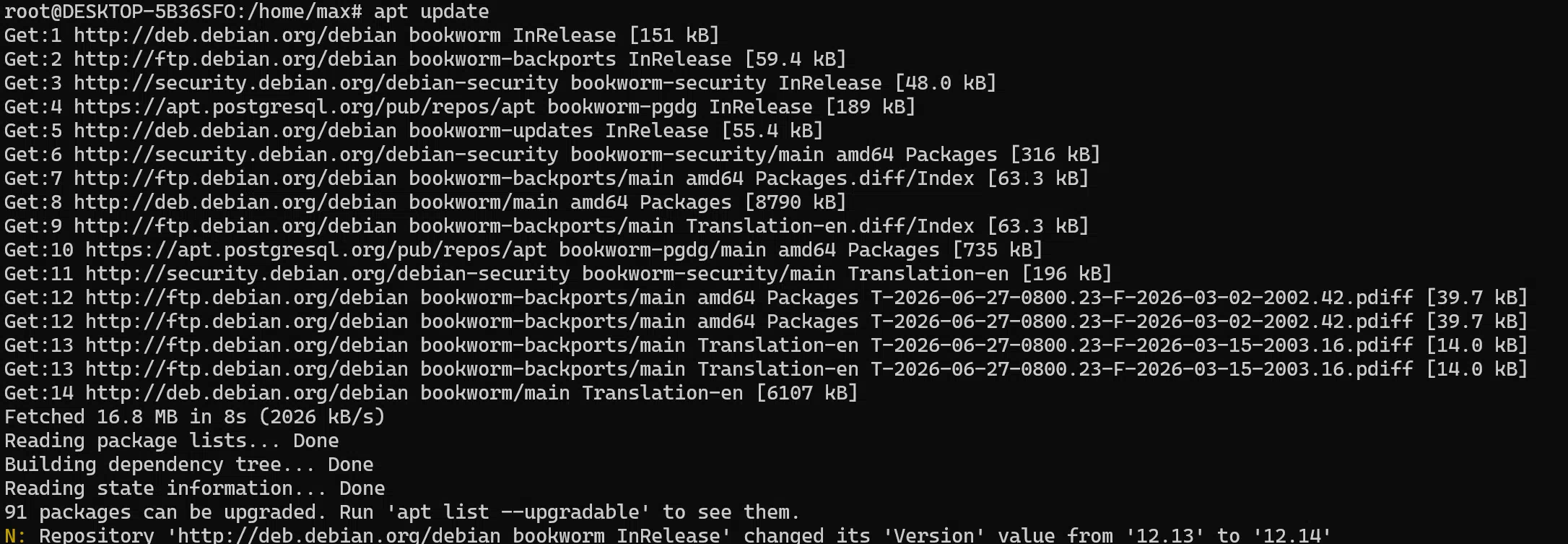
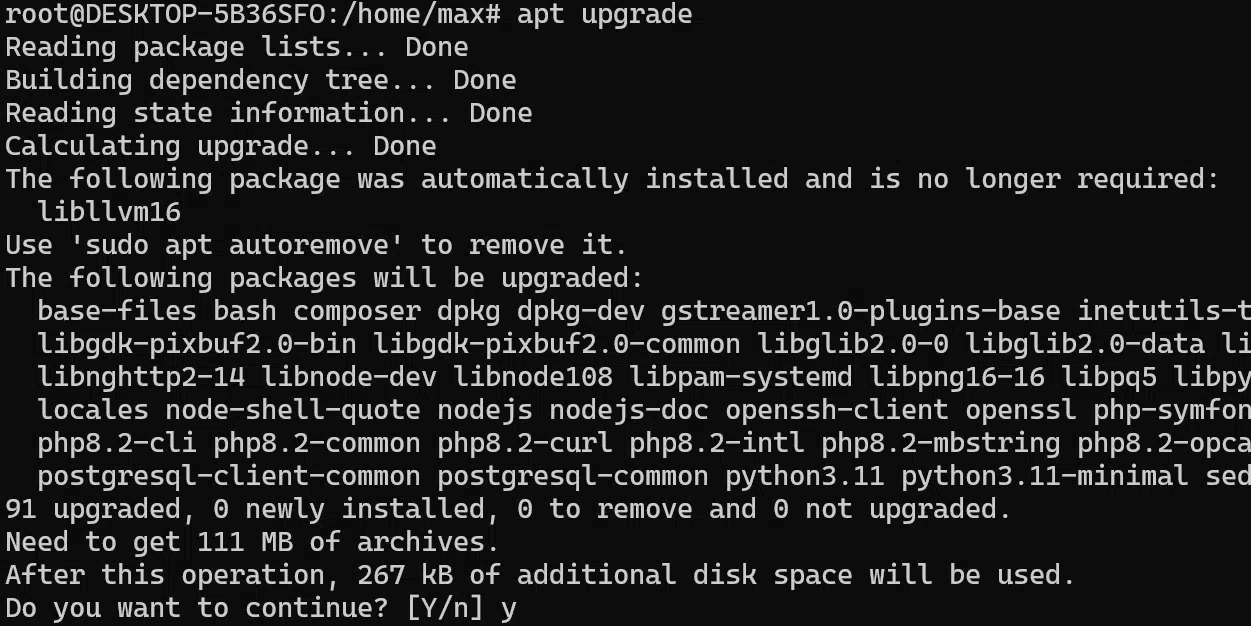
Install latest PostgreSQL
For the CMS to work, you must install the latest PostgreSQL, for this you may need to update the system repo lists before running the postgresql install command, if you run the install command directly then you may not get the latest PotgreSQL installed, and that can be an issue because the latest version always have the latest features.
Run the following commands in order:
sudo apt install -y postgresql-commonsudo /usr/share/postgresql-common/pgdg/apt.postgresql.org.shsudo apt -y install postgresql-18Download the ChronoCMS files to your server
Create a web root directory
mkdir -p /var/wwwDownload the latest installation files to the webroot
wget https://www.chronocms.com/chrono_cms.zip -O /var/www/chrono_cms.zipwget https://www.chronocms.com/deploy_cms.sh -O /var/www/deploy_cms.shInstall and run the ChronoCMS service
bash /var/www/deploy_cms.shVerify the new service is up and running
systemctl status chrono_cmsCreate your first website
ChronoCMS automates the creation of the site database, you just need to point your domain nameservers to your web server then create the domain entry in the ChronoCMS sites directory in order for the domain to start be served from ChronoCMS
Run the following command to create your first domain
touch /var/www/sites/cms-domain.com.jsonNow you have a domain.com website created, and if your domain.com nameservers are pointing to your webserver then you should be able to open http://domain.com in your web browser.